FAB Mobile App: Full Guide to Download, Register & Use (2026)
Most people search for this because something went wrong. Maybe the app stopped working. Maybe you just got your salary account and have no idea how to check your balance without going to a branch. Or you got a Ratibi card, and nobody told you how to use it digitally.
That is exactly why this guide exists.
This is not a page that just lists features. It walks you through every part of the FAB mobile app from setup to daily use, with real steps and honest answers. Whether you need a FAB balance check, want to track your Ratibi card salary, or just want to know why the app is not opening, you will find it here.
What Is the FAB Mobile App?
The FAB mobile banking app is the official banking app from First Abu Dhabi Bank. It lets you handle most of your banking from your phone without going to a branch at all.
You can check balances, pay bills, move money, activate cards, download statements, and more. It works in both Arabic and English. It runs on Android and iOS.
The app is free to download. No monthly charge to use it.
Who Uses It?
- Personal account holders in the UAE
- Expat workers managing salary accounts
- Ratibi prepaid card users checking wages
- Business customers who make quick payments
- Anyone who wants to avoid branch queues
How to Register on FAB Mobile Banking
New to the app? Registration takes about five minutes if you have your Emirates ID ready.
What You Need
- Emirates ID (physical card)
- Your registered UAE mobile number
- A working camera on your phone (for ID scan)
Registration Steps
- Open the app
- Accept the terms and privacy policy
- Tap Register
- Enter your Emirates ID number
- Scan your ID using the camera or type the details manually
- Create a username (you will use this every time you log in)
- Set a strong password
- Create a 4-digit PIN for quick access
- Enable biometric login if your device supports it
- Enter the OTP sent to your registered mobile number
- Done. Your account is ready.
The OTP expires in 3 minutes. If you miss it, request a new one.
Enable Biometric Login
After registration, go to Settings and turn on fingerprint or Face ID login. This saves you from typing your password every time. Worth doing on day one.
FAB Mobile App Login: Returning Users
If you already have an account:
- Open the app
- Enter your username and password
- Or use fingerprint/Face ID if you set it up
That is it. You are on the dashboard in under 10 seconds.
Forgot Your Password?
Tap “Forgot Password” on the login screen. You will need your Emirates ID and registered mobile number to reset it. The process takes about two minutes.
Account Locked?
After several failed login attempts, the app locks for security. To unlock, tap the unlock option on the login screen and verify with your Emirates ID. You can also call FAB support to unlock it faster.
Device Requirements Before You Download
Check these before you waste time.
For Android:
- Android 8.0 or higher
- Google Play Services must be active
- Stable internet connection
For iPhone:
- iOS 13 or later
- Apple ID for App Store access
- Face ID or Touch ID is recommended but not required
How to Download the FAB Mobile App
On Android
- Open Google Play Store
- Search “FAB Mobile” or “First Abu Dhabi Bank”
- Look for the official app with the FAB logo
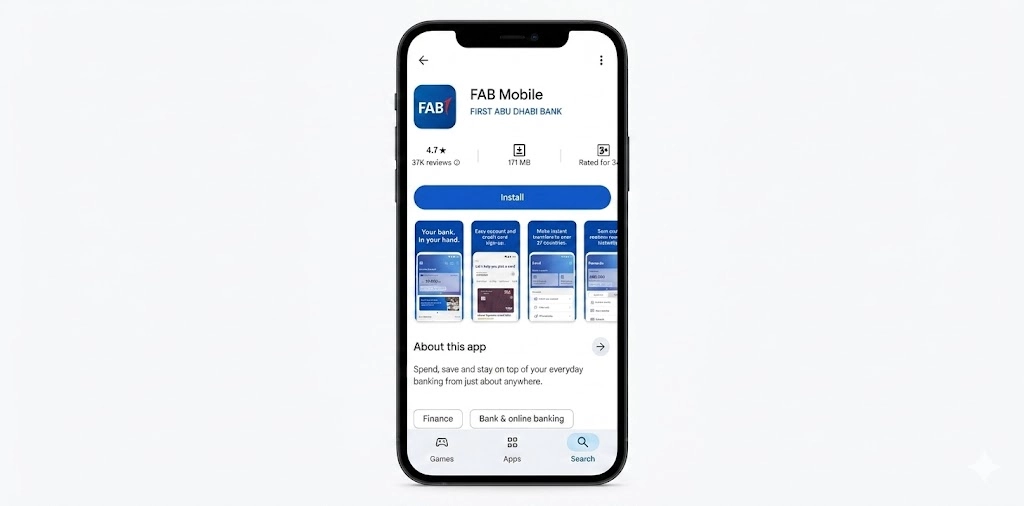
- Check the developer name says First Abu Dhabi Bank
- Tap Install
- Wait for it to finish, then tap Open
Takes under two minutes on a normal connection.
Important: Never download APK files from outside the Play Store. Fake banking apps exist, and they are dangerous.
On iPhone
- Open App Store
- Search “FAB Mobile”
- Select the official result showing First Abu Dhabi Bank as the developer
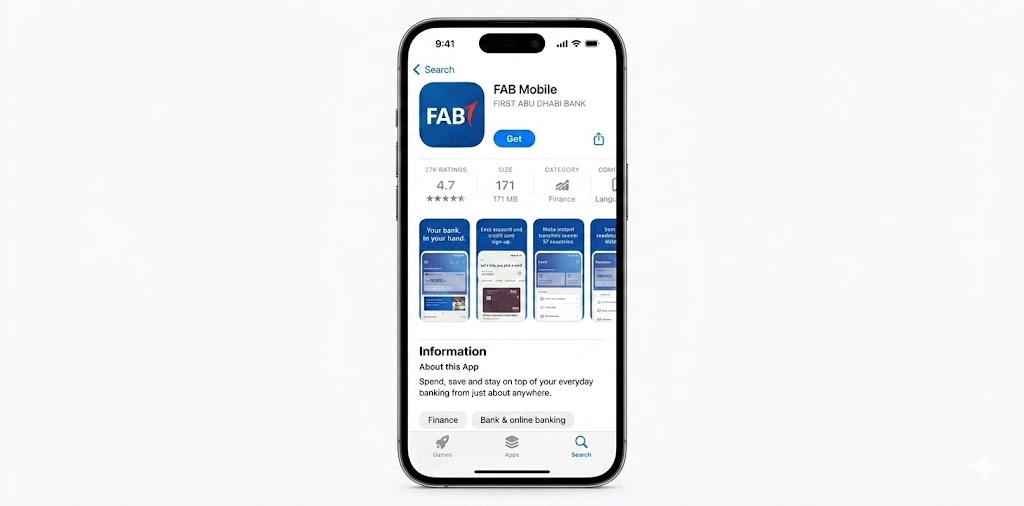
- Tap Get
- Confirm with Face ID, Touch ID, or Apple ID password
- Tap Open once installed
How to Check You Got the Real App
Before you enter any account details, verify:
- Developer name: First Abu Dhabi Bank
- The FAB logo matches the official bank logo
- The app has a large number of reviews and a regular update history
- No spelling errors in the app name or description
If anything looks off, delete it and search again.
FAB Balance Check: How to Check Your Account Balance
This is one of the most searched things about the app, and it is also the simplest.
After logging in, your balance shows directly on the dashboard. No extra steps needed.
For more details:
- Tap the account you want
- View current balance, available balance, and pending transactions
- Scroll down for full transaction history
You can also do a FAB balance check for prepaid cards using the same method. More on that below.
Checking Balance for Multiple Accounts
If you have more than one account linked, swipe between the tiles on the dashboard. Each one shows the balance for that specific account.
New Features on FAB Mobile in 2026
The app received several updates this year. These are not small tweaks. A few of them actually change how you use the app day to day.
Approve Payments Without OTP
You can now approve online card payments directly from the app with a single tap. No waiting for an SMS code. The app sends you a push notification, you approve it, done. Faster and more secure than OTP for most transactions.
Smart Transactions and Spending Insights
The app now groups your spending into 23 categories automatically. Groceries, transport, dining, utilities, all sorted without you doing anything. You also get a cash flow view that shows money coming in vs money going out over time.
Useful if you want to see where your salary actually goes each month.
Travel Alerts
Going outside the UAE? You can now set a travel alert in the app before you leave. This keeps your card active abroad without it being blocked for “suspicious activity.” Set it under Cards, then select the travel dates and destination.
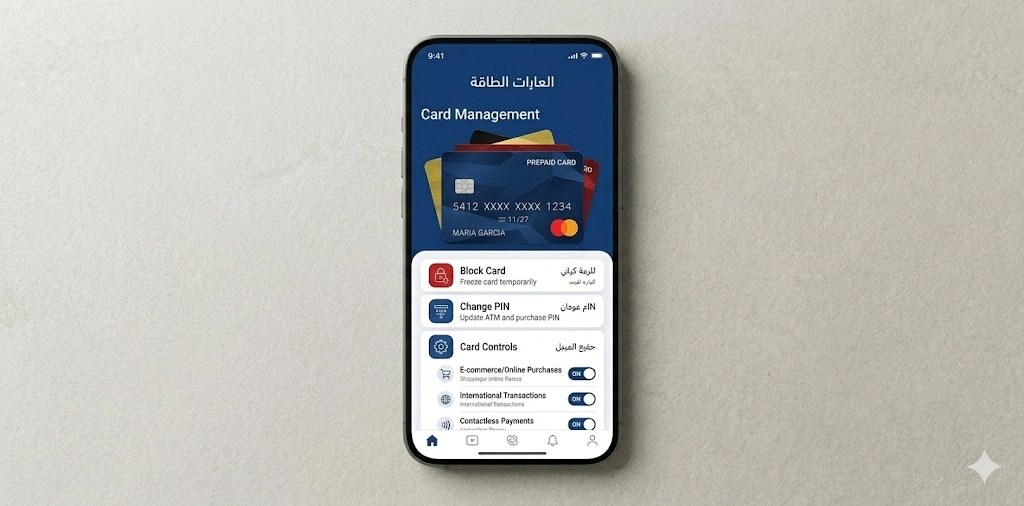
Card Controls
You can now turn specific card functions on or off:
- Block international transactions
- Disable online purchases
- Turn off ATM withdrawals
- Block contactless payments
Each one is a separate toggle. Useful if you only want your card to work for certain things.
Decrease Your Credit Limit
Not a feature most apps have. You can lower your credit card limit from inside the app if you want to stay in control of your spending. Go to Cards, then Services, then Manage Credit Limit.
FAB Prepaid Cards Enquiry; Check Ratibi and Other Prepaid Cards
The FAB prepaid cards enquiry feature is inside the Cards section of the app.
Here is how to check it:
- Tap Cards on the bottom menu
- Select your prepaid card from the list
- Your current balance is shown at the top
- Scroll down to see recent transactions
If you are a Ratibi cardholder, this is the same process you use for your Ratibi card salary check.
FAB Salary Check: How to Confirm Your Salary Was Credited
Workers who receive a salary through FAB accounts or Ratibi cards often check this the moment their pay date arrives.
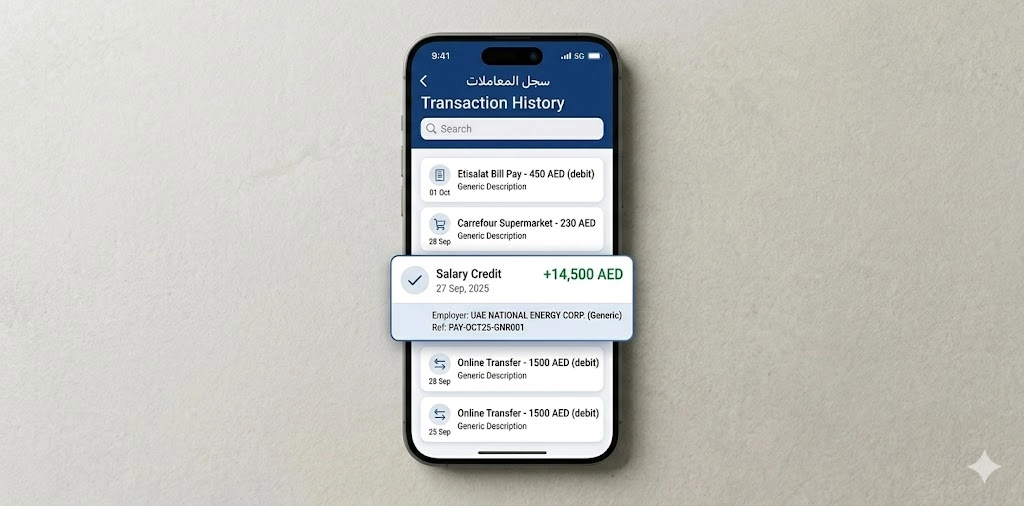
Here is how to do a FAB salary check through the app:
- Log in to the app
- Go to the account or prepaid card where your salary is deposited
- Tap the account to open the transaction history
- Look for the salary credit entry at the top (it usually shows the employer name or WPS reference)
- The date, amount, and reference number are all listed
You also get a push notification the moment your salary hits. Turn on notifications in app settings so you do not miss it.
How to Transfer Money on FAB Mobile
Transfers work fast. Most complete within seconds for local transfers, and within one to three business days for international ones.
Types of Transfers
Transfer Type | Processing Time | Notes |
FAB to FAB | Instant | 24/7 |
UAE bank transfer (local) | Same day | Business hours |
International (SWIFT) | 1 to 3 business days | FX rates shown before confirmation |
Beneficiary payment | Instant to same day | Depends on the bank |
How to Transfer
- Tap Transfer on the dashboard
- Choose the transfer type (FAB to FAB, UAE bank, International)
- Select a saved beneficiary or add a new one
- Enter the amount
- For international transfers, check the exchange rate shown on screen
- Confirm with your PIN or biometric
- Save the transaction receipt
Adding a new beneficiary takes a few extra seconds. You need the IBAN number for UAE banks. For international transfers, you need the SWIFT/BIC code and full account details.
The App Dashboard: What You See and Where to Go
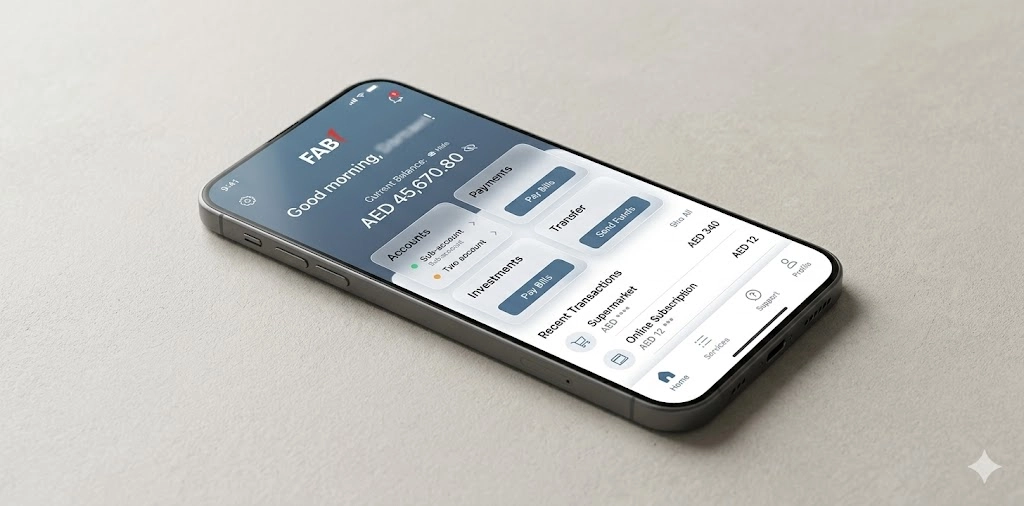
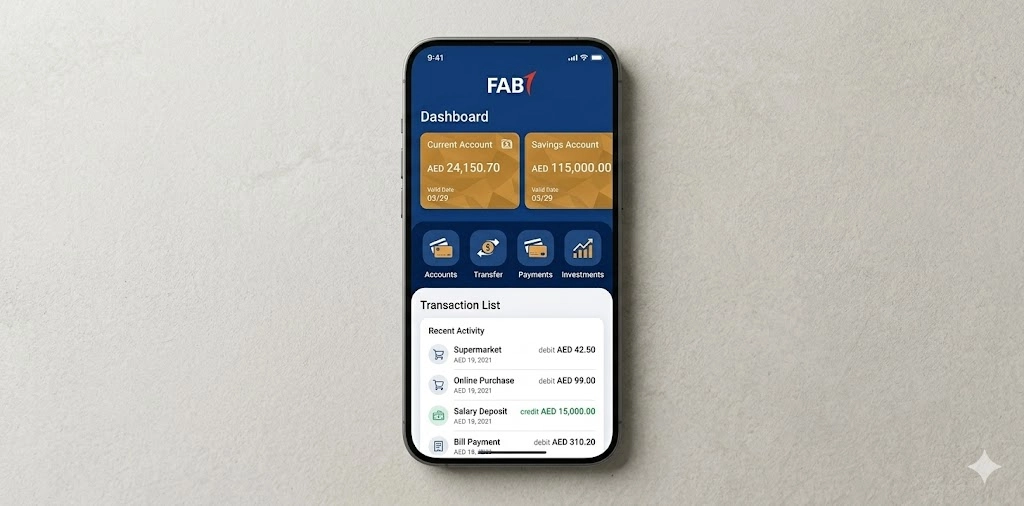
The dashboard is the first thing you see after logging in. It shows:
- Your account balances at the top
- Recent transactions below that
- Quick-action buttons: Transfer, Pay, Top-Up, Card Services
- Notification bell for alerts
- Menu bar at the bottom for navigation
Swipe left or right across your accounts to switch between savings, current, credit, and prepaid card balances. Tap any account to see the full transaction history for that account.
The layout is clean. Most things are two taps away.
Bill Payments and Top-Ups
Pay your bills without opening a browser or driving anywhere.
Supported Billers Include:
- Electricity and water (DEWA, ADDC, SEWA, FEWA)
- Internet and TV providers
- Mobile top-ups (du, Etisalat/e&)
- Toll payments (Salik)
- Government service fees
- School and education fees (select institutions)
How to Pay a Bill
- Tap Pay on the main screen
- Choose the service provider from the list
- Enter your customer reference or account number
- The outstanding amount loads automatically for most billers
- Confirm the amount
- Authorize with PIN or fingerprint
- Save the bill for next time
Managing Your Cards on FAB Mobile
The app gives you full control over all your debit, credit, and prepaid cards without needing to call anyone.
How to Activate a New Card
- Go to Card Services
- Tap Activate Card
- Enter the last four digits of your card
- Confirm with the OTP sent to your mobile
- The card is active immediately
Block or Unblock a Card
Lost your card or think it got compromised?
- Go to Card Services
- Tap Block Card
- Select the card you want to block
- Confirm
It blocks in seconds. No branch visit. No call center wait. To unblock, follow the same steps and tap Unblock instead.
Change Your Card PIN
- Go to Card Services
- Tap Change PIN
- Enter your current PIN
- Enter new PIN twice
- Confirm with OTP
The new PIN works at ATMs and POS terminals immediately after.
FAB Bank Statement: Download and Access Your Records
For visa applications, loan approvals, or just personal budgeting, you can get your FAB bank statement directly from the app.
Download a Monthly Statement
- Go to Accounts
- Select the account you need
- Tap Statements or Transaction History
- Choose the month or date range
- Download as PDF
- Save to your phone or share via email
Subscribe to E-Statements
Instead of waiting for paper statements, you can opt in to monthly email statements:
- Go to Profile or Settings
- Find Statement Preferences
- Toggle on E-Statements
- Choose the email address
FAB iSave Account and Zero Balance Account
What is the iSave Account?
The iSave account is a savings account you can open directly through the FAB mobile app without visiting a branch. It earns interest on your balance and has no minimum balance requirement to maintain it.
To open one:
- Log in to the app
- Tap the plus icon or “Open New Account.”
- Select iSave from the account list
- Fill in the required details
- Confirm with OTP
The account opens within minutes in most cases.
FAB Zero Balance Account
FAB offers accounts that do not require a minimum monthly balance. You can apply for select account types through the app. The Personal Current Account, for example, requires a minimum monthly income of AED 3,000 to qualify. You do not need to maintain a minimum balance to avoid charges on certain account types.
Check the account options inside the app under Products or Sign Up for more details specific to your eligibility.
FAB Online Banking vs FAB Mobile App
Some people use both. Others use just one. Here is how they differ:
Feature | FAB Mobile App | FAB Online Banking |
Access | Smartphone only | Desktop and mobile browser |
Biometric login | Yes | No |
Card controls | Full | Limited |
Push notifications | Yes | No |
Account opening | Yes | No |
Statement download | Yes | Yes |
International transfers | Yes | Yes |
Best for | Daily use on the go | Complex tasks on a desktop |
For most daily tasks, the mobile app is faster. FAB online banking login through a browser is better when you are doing something that needs a bigger screen or more detailed review, like tracking months of transactions or preparing documents.
Security Features That Protect Your Account
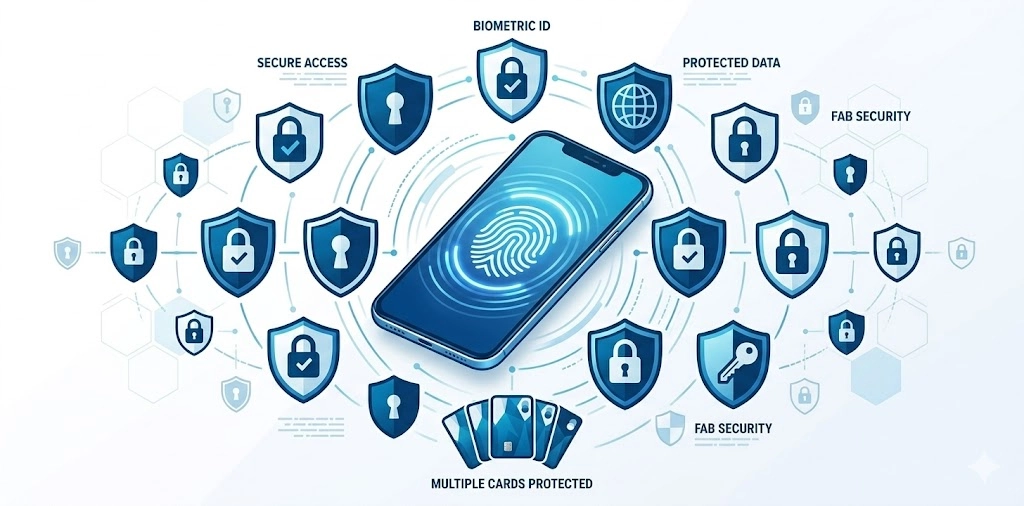
The app uses several layers of protection that most users never think about until something goes wrong.
- 256-bit encryption on all data transfers
- Biometric login, so only your face or fingerprint unlocks the app
- Device binding so your account only works on your registered device
- Auto-logout after a period of inactivity
- Real-time alerts for every transaction
The device binding feature is important. If someone gets your username and password, they still cannot log in from their phone because the account is bound to your device only.
What to Do If You Lose Your Phone
Remove the device immediately:
- Log in to FAB online banking from any browser
- Go to Profile
- Open Registered Devices
- Select your lost device
- Tap Delink
- Confirm with OTP
The device loses access the moment you confirm. No one can use your banking app from that phone after that.
Tips for Safe Mobile Banking
- Never share your OTP with anyone, including people claiming to be from FAB
- Do not use public WiFi for banking transactions
- Enable biometric login if you have not already
- Keep the app updated. Updates fix security issues, not just bugs.
- Log out after each session if you share your phone
- Report anything suspicious to FAB support immediately. Do not wait.
How to Find a FAB ATM Near You
The app has a locator built in. Here is how to use it:
- Open the FAB mobile app
- Tap More or the menu icon
- Look for the Branch and ATM Locator or FAB ATM Near Me
- Allow location access when prompted
- A map loads showing the nearest ATMs and branches
- Tap any pin to get the address, distance, and operating hours
FAB Mobile App Not Working: How to Fix It
This is the section people need when they are frustrated. Here are the actual fixes.
App Won't Open or Keeps Crashing
- Check your internet connection first. Switch from WiFi to mobile data or the other way around.
- Force close the app and reopen it
- Restart your phone
- Check if there is an update available in the Play Store or App Store
- Clear app cache (Android): Settings, Apps, FAB Mobile, Clear Cache
- Reinstall the app if nothing else works
Login Not Working
- Check the caps lock. Passwords are case-sensitive.
- Try tapping “Forgot Password” and resetting
- If the account is locked, use the Unlock Account option on the login screen
- Call support if you cannot get in after two attempts
Transfer or Payment Failing
- Check that your account balance is sufficient
- Verify the beneficiary details are correct, especially the IBAN
- Some transfers have a daily limit. Check your limit under Profile or Settings
- For international transfers, confirm you are using the correct SWIFT code
OTP Not Arriving
- Confirm your registered mobile number is correct
- Check that your phone has a signal
- Wait 60 seconds and request a new OTP
- Check that SMS is not blocked by your phone settings
Frequently Asked Questions
How do I register for FAB mobile banking?
Download the app, tap Register, enter your Emirates ID, scan it or type details manually, create a username and PIN, then verify with the OTP sent to your phone.
How do I check my FAB balance online?
Log in to the app, and your balance shows on the dashboard immediately. Tap any account for more details. You can also do a FAB balance check for prepaid cards through the Cards section.
How do I do a FAB salary check?
Go to the account or prepaid card where your salary lands. Tap it and look at recent transactions. The salary credit shows the date, amount, and employer reference.
Can I use the FAB app outside the UAE?
Yes. The app works internationally. Set a travel alert before you leave so your card stays active abroad without interruption.
How do I delink the FAB mobile app from my phone?
Log in to FAB online banking on a desktop browser, go to Profile, open Registered Devices, select the device, and tap Delink. Confirm with OTP.
Is the FAB mobile app free to download?
Yes. The app is free to download and free to use. Standard data charges from your mobile provider may apply.
How do I reset my FAB mobile banking password?
Tap Forgot Password on the login screen. You will need your Emirates ID number and registered mobile number to complete the reset.
How do I activate my card on the FAB app?
Go to Card Services, tap Activate Card, enter your card details, and confirm with OTP. The card activates immediately.
What do I do if a payment fails on the FAB app?
Check your balance, verify the beneficiary details, and confirm your daily transfer limit has not been reached. If the issue continues, contact FAB support through the in-app chat or call 600 52 5500.